
📖 Introduction
Reputation Manager provides four distinct types of review widgets to help you display social proof on your website. Each widget is designed to fit different layout needs and user experiences, allowing you to highlight your best feedback effectively.
By default, every widget displays the following information:
How long ago the review was left
Reviewer Photo (if available)
Reviewer Name
Review Star Rating (if available)
Logo of the Review Service (if available)
Review Content
Note: These elements can be modified. For more information, see Customising your review widget.
🚀 Step-by-Step Instructions
🖱️ Popup Widget
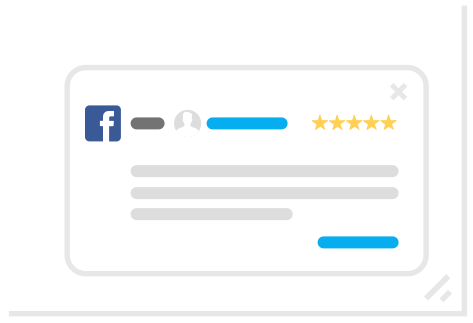
The Popup widget does not take up dedicated space on your page layout. Instead, reviews "pop up" from the bottom of the screen and cycle through all showcased reviews before repeating.
Best used when:
You want your reviews to be visible to all website visitors regardless of which section of the page they are viewing.
You do not have a dedicated area on your website design for reviews.
How to preview: To see an example of the Popup review widget with your live data, navigate to the Showcase Widgets page; an example will automatically appear in the lower right of your browser window.
🎡 Carousel Widget
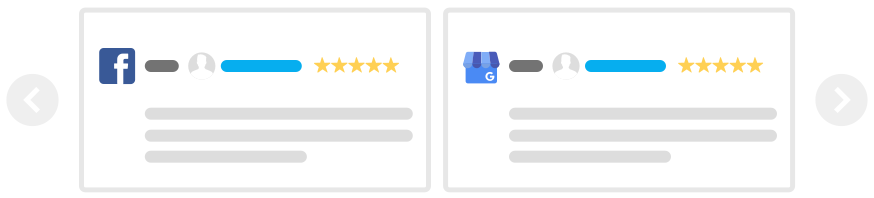
The Carousel widget appears in a fixed location on your webpage and displays two reviews at a time. A new review will slide in from the right every few seconds, or visitors can use manual scroll buttons to navigate left and right.
Best used when:
You have a specific area on a page for reviews but limited vertical space.
How to preview:
Navigate to the Showcase Widgets page.
Select Reviews Carousel from the top dropdown menu.
An example will appear at the bottom of the page under the Example heading.
📜 List Widget
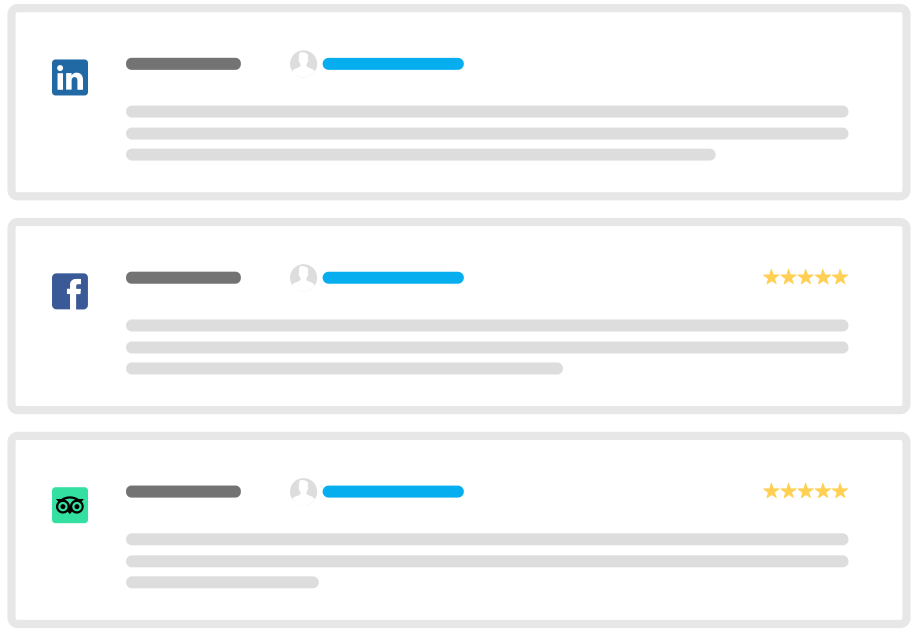
The List widget displays all of your showcased reviews in a single-column vertical list on the webpage where the script is placed.
Best used when:
You have a set place on a page where you want your reviews to appear.
You want website visitors to easily read full review content (as the list format provides the most horizontal space).
You have a smaller number of total reviews to showcase.
How to preview:
Navigate to the Showcase Widgets page.
Select Reviews List from the top dropdown menu.
An example will appear at the bottom of the page under the Example heading.
⊞ Grid Widget
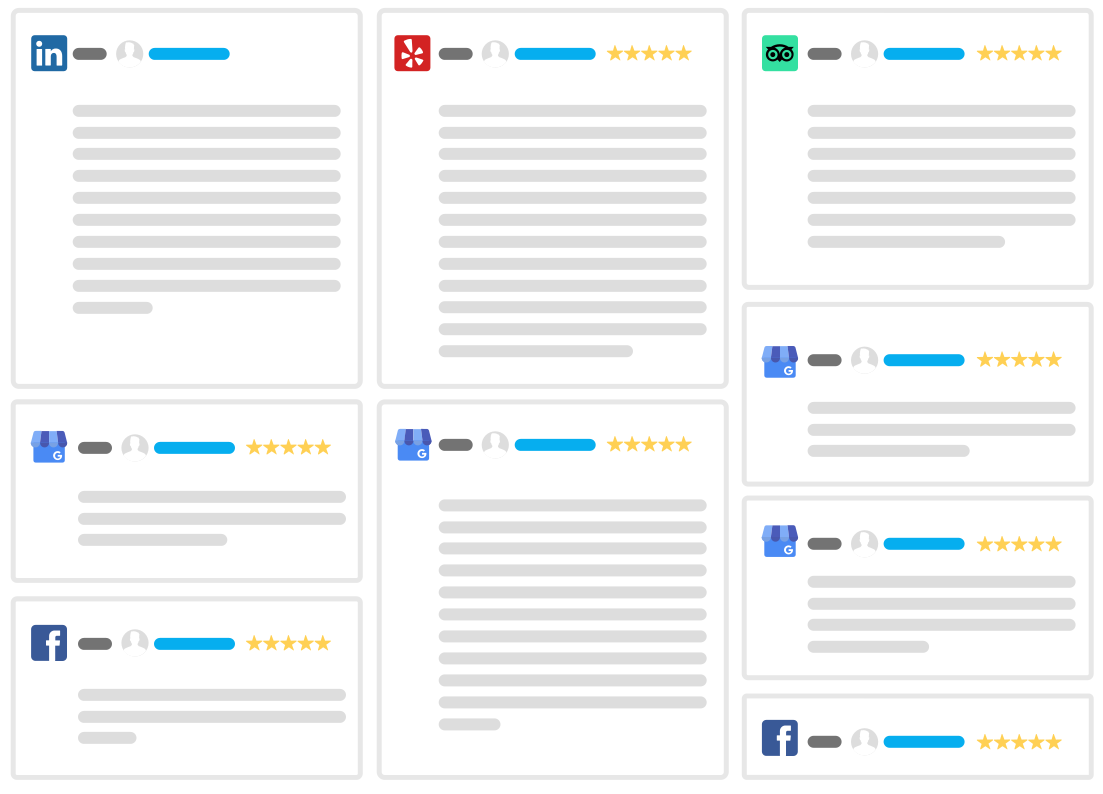
The Grid widget displays your showcased reviews in a responsive grid. On desktop browsers, the grid displays 3 columns of reviews, with each review appearing as a card. On mobile devices, the layout automatically reverts to a single column (identical to the List Widget) for better readability.
How to preview:
Navigate to the Showcase Widgets page.
Select Reviews Grid from the top dropdown menu.
An example will appear at the bottom of the page under the Example heading.
❓ FAQs & Common Issues
Q: Can I change the information shown in the widget? A: Yes, the fields (like reviewer name or photo) can be customized. Refer to the article on Customising your review widget.
Q: Does the Grid widget look messy on phones? A: No, the Grid Widget is mobile-responsive and will automatically switch to a single-column list view on smaller screens to ensure a clean appearance.
Q: Can I use more than one widget type on my site? A: Yes, you can generate different scripts from the Showcase Widgets page and place them on various pages of your website as needed.
🙋 Need Help?
If you need assistance, contact support@asknice.ly