
📖 Introduction
Do you want to change the font size, adjust the background, or make your reviews smaller to better fit your website’s aesthetic?
Reputation Manager review widgets are highly customizable, allowing you to modify nearly every visual element. By using the Custom CSS field, you can quickly align the look and feel of your widgets with your brand's unique style.
🚀 Step-by-Step Instructions
Custom CSS is configured individually for each widget. This allows you to have a completely different appearance for different widget types (e.g., a specific style for your Popup and a different one for your List).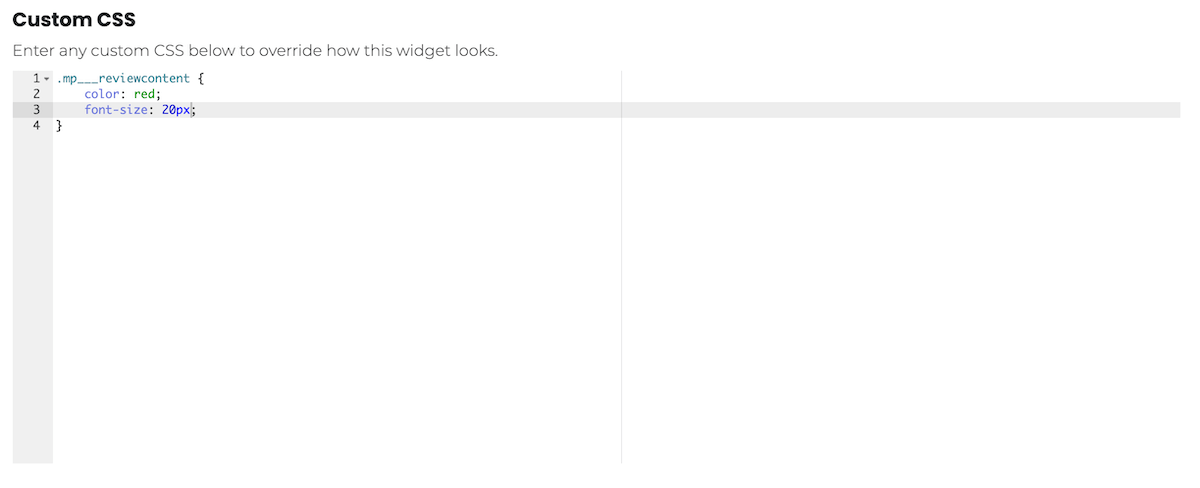
Navigate to the Showcase Widgets page.
Select the widget you wish to edit from the top dropdown menu.
Scroll to the Custom CSS control box.
Type or paste the CSS code into the field.
Press Save at the top of the page.
View the example widget on the page (either at the bottom or as a popup) to see your changes immediately.
Refresh the page on your live website to push the changes to your visitors.
🛠️ Widget CSS Classes
All Reputation Manager CSS classes begin with the prefix mp___ (mp followed by three underscores). Use the following classes to target specific parts of the widget:
| CSS Class | Description |
|---|---|
| .mp___reviewContainer | The main container of the review. Use this to change overall size/width. |
| .mp___reviewcontent | The actual text/body of the review. |
| .mp___reviewDate | The date the review was posted. |
| .mp___reviewheader | The header row containing the Date, Reviewer, and Rating. |
| .mp___reviewRating | The star rating icons. |
| .mp___reviewer | The section containing the reviewer's image and name. |
| .mp___reviewReviewer | Specifically the reviewer's name. |
| .mp___reviewtitle | The title of the review (supported by specific platforms only). |
| .mp___serviceLogo | The logo of the source (e.g., Google, Facebook) where the review was left. |
💡 Common Customizations
Change the Font Size of Review Text
Set the font-size to the value that works best for your site's readability.
CSS
.mp___reviewcontent {
    font-size: 20px;
}
Changing the Width of the Popup Widget
If the popup is obscuring your website content, you can decrease its width. The default is 30rem.
CSS
.mp___reviewContainer {
     width: 20rem;
}
Note: Reducing the width may increase the height of the widget if the review contains a lot of text.
Changing the size of the Service Logo
To adjust the source logo (e.g., Google logo), ensure you keep the width and height equal to maintain the aspect ratio.
CSS
.mp___serviceLogo {
    width: 40px;
    height: 40px;
}
Removing the Service Logo
To completely hide the logo and allow the review text to fill the empty space:
CSS
.mp___reviewContentContainer {
    grid-template-columns: none auto;
}

.mp___serviceLogo {
    display: none;
}
Change the size of the Star Rating
The default size is 1.5em. You can use pixels (px), rem, or em units.
CSS
.mp___star-ratings-css {
    font-size: 20px;
    line-height: 20px;
    height: 20px;
}
❓ FAQs & Common Issues
Q: Will my CSS changes affect all my widgets?
A: No. CSS is saved per widget. If you want the same look across a Carousel and a Grid, you must copy the CSS into the settings for both widgets.
Q: I saved my changes but I don't see them on my website?
A: Ensure you have clicked Save at the top of the Showcase Widgets page. If it still doesn't appear, try clearing your browser cache or opening your site in an Incognito/Private window.
Q: Do I need to be a developer to use this?
A: While a basic understanding of CSS helps, you can simply copy and paste the examples provided above into the Custom CSS field to make common adjustments.
🙋 Need Help?
If you need assistance, contact support@asknice.ly